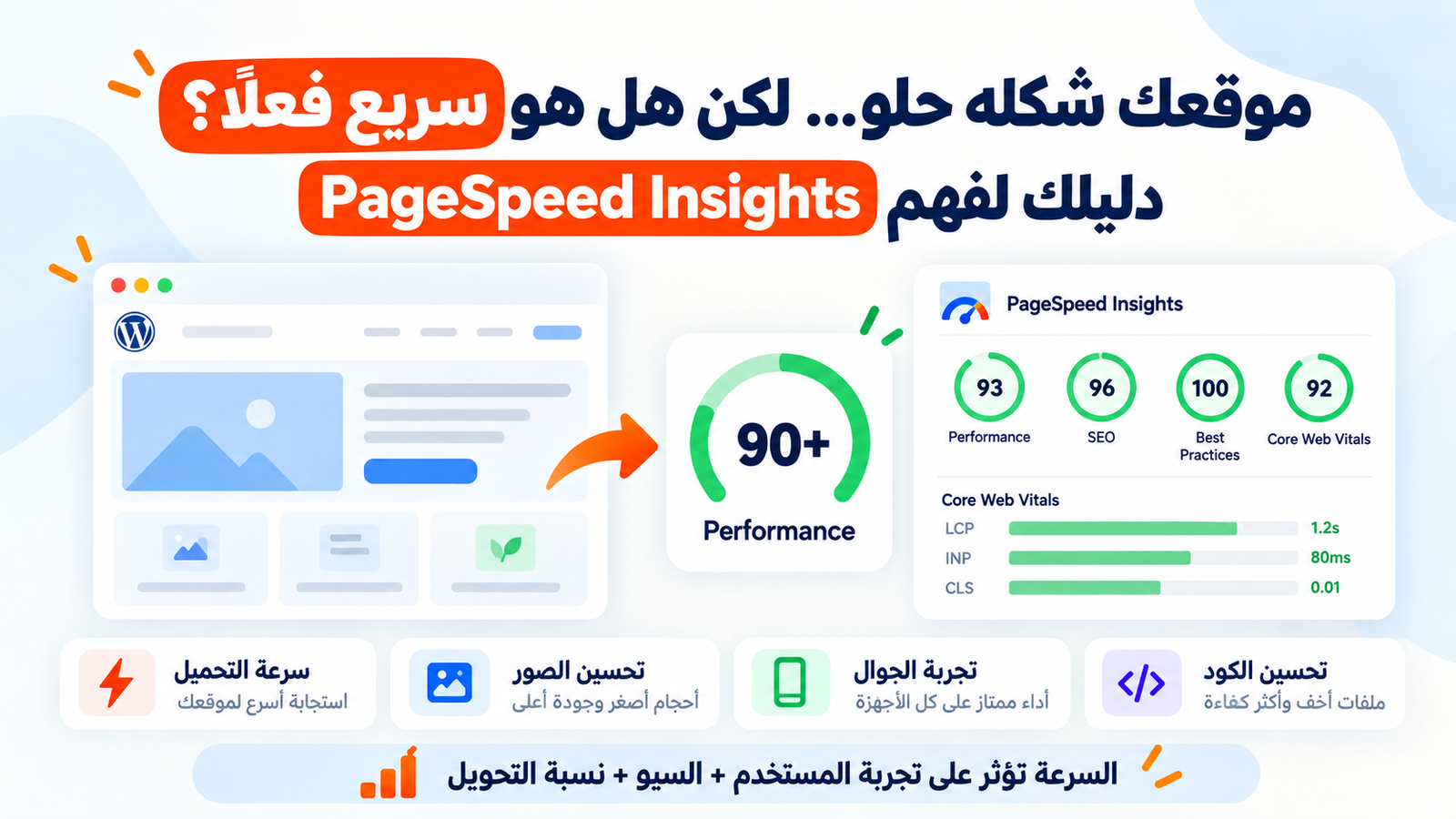
How I Reduced a WordPress Website’s Load Time from 30+ Seconds to Around 2 Seconds
WordPress isn't my primary specialization. My background is mainly in backend development with PHP and Laravel.
However, I was asked to take responsibility for a WordPress website, and one of my first objectives was very clear:
Make the website as fast as possible.
The problem was significant: the website could sometimes take more than 30 seconds to fully load.
Working on it reinforced an important lesson for me:
A slow website isn't always caused by the backend or the database.
A Backend Developer's Mindset Isn't Enough
As Laravel developers, when we think about performance optimization, we naturally focus on things such as:
- Solving N+1 query problems using
with(). - Using pagination instead of loading thousands of records at once.
- Avoiding unnecessary calls to
all(). - Selecting only the database columns we actually need.
- Reducing and optimizing database queries.
- Using caching where appropriate.
All of these are important.
But while working on this WordPress website, I discovered that some much simpler factors had a bigger impact on performance and user experience than I expected.
Here are some of the changes that made the biggest difference.
1. Images Were One of the Biggest Performance Problems
Images had a significant impact on the website's performance.
Loading a huge high-resolution image only to display it in a small section of the page means the visitor is downloading far more data than necessary.
I started focusing on:
- Choosing appropriate image formats.
- Compressing images and reducing file sizes.
- Serving images at suitable dimensions.
- Avoiding unnecessarily high-resolution images.
- Using lazy loading for images outside the initial viewport.
For example:
<img src="image.webp" loading="lazy" alt="..." />
It may look like a very small optimization, but it can make a noticeable difference on pages containing many images.
The idea is simple:
Why load an image now if the visitor still needs to scroll before they can even see it?
2. I Removed the Preloader
This was one of the changes that had the biggest impact on perceived performance.
The website displayed a preloader and kept it visible while different page resources were still loading.
That meant the visitor could be waiting for JavaScript files, images, iframes, or third-party resources before seeing the actual page.
In some cases, the browser could still be loading something as unimportant to the initial experience as a Google Map in the footer, while the visitor was still staring at a loading screen.
After removing the preloader, the page could appear progressively.
The heading could appear.
The main content could appear.
Less important images and resources could continue loading afterward.
The result was a major improvement in perceived performance — how fast the website feels to the visitor, not just what a performance tool reports.
3. I Reduced Unnecessary Plugins
One of WordPress's biggest advantages is its plugin ecosystem.
You can add almost any feature by installing a plugin.
But that convenience can also become a performance problem.
Sometimes we install a plugin containing dozens of features just because we need one small function.
That plugin may also introduce:
- Additional CSS files.
- Additional JavaScript.
- Database queries.
- Extra hooks and filters.
- Additional requests or processing during page loads.
A plugin isn't just another name in the WordPress dashboard.
For every plugin, it's worth asking:
Do I really need this plugin, and is the value it provides worth its performance cost?
Removing unnecessary plugins helped simplify the website and contributed noticeably to the performance improvements.
4. I Configured Caching Properly
Caching was another major part of the improvement.
It doesn't make sense to execute the entire request lifecycle from scratch every time someone visits a page whose content rarely changes.
Many pages can be cached effectively, reducing the amount of work the server has to perform for each visitor.
But caching isn't simply:
"I installed a caching plugin, so my website is fast."
You need to understand:
- Which pages can safely be cached?
- When should the cache expire or be refreshed?
- Which dynamic content shouldn't be cached in the same way?
- Is the cache actually working and improving performance?
Once caching was configured properly, the difference became very noticeable.
The Result: From 30+ Seconds to Around 2 Seconds
After applying these changes, along with several smaller optimizations, the website's loading time dropped from more than 30 seconds to around 2 seconds in my tests.
That's a huge difference.
The visitor doesn't care whether the website was built with Laravel or WordPress.
They don't care how many database queries you optimized or which design patterns you used.
They clicked a link and expected to see the content.
And every extra second of waiting can affect their impression of the website.
The Biggest Lesson I Learned
This experience reinforced something important for me:
Performance optimization isn't just about writing better backend code.
Website performance is the result of many layers working together:
Backend + Database + Images + Frontend Assets + Network Requests + Plugins + Caching + How the page is presented to the visitor.
Sometimes a very small change in an unexpected place can have a bigger impact than hours spent optimizing code.
There are obviously many other performance optimizations depending on the website and its architecture, but in this case, images, the preloader, plugins, and caching were some of the changes that made the biggest difference.
What About You?
Have you ever worked on a WordPress website that was extremely slow?
What small change made the biggest difference to its performance?